
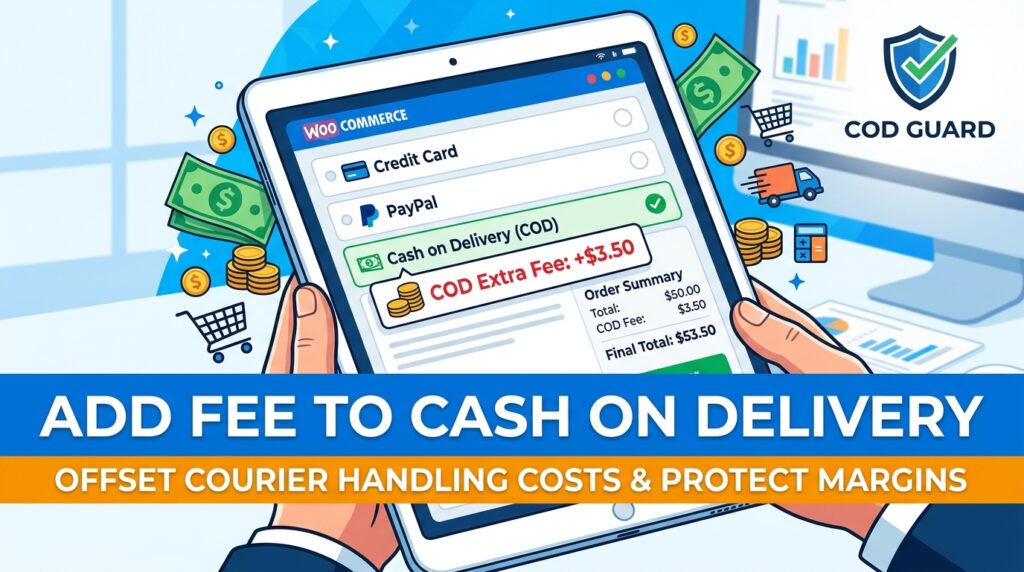
Fulfilling Cash on Delivery orders often incurs additional handling charges from logistics and courier partners. However, many store owners absorb these extra cash handling expenses directly out of their operating margins.
For example, paying an extra $3 to $5 per cash delivery without passing that cost to the customer significantly shrinks profit margins across high order volumes.
Consequently, learning how to add a fee to cash on delivery in WooCommerce enables you to automatically charge a surcharge for cash payments.
Therefore, setting up Cash on Delivery fee rules protects store profitability and encourages shoppers to choose zero-fee online payment options.
In this guide, you will learn how payment surcharges safeguard order margins. Furthermore, discover how to add a fee to Cash on Delivery using COD Guard.
Why Charging a Cash on Delivery Surcharge Preserves Profitability
Absorbing logistics collection surcharges across every cash order creates an unnecessary financial strain on growing stores. In contrast, dynamically adding a clear fee for cash payments ensures operating expenses remain balanced.
In fact, implementing Cash on Delivery surcharge rules provides three strategic business advantages:
- Recover Courier Cash Handling Expenses: First, automatically charge flat or percentage fees to cover payment processing surcharges levied by shipping carriers.
- Incentivize Prepaid Digital Payments: Second, encourage budget-conscious customers to adopt instant credit card or digital wallet gateways to avoid extra fees.
- Maintain Healthy Gross Profit Margins: Finally, protect your net earnings on low-margin products that cannot absorb unrecovered handling fees.
How COD Guard Manages Dynamic Cash on Delivery Fees
Adding extra fee line-items directly into the WooCommerce checkout calculation stack via custom functions is prone to breakdown during plugin updates. Fortunately, COD Guard for WooCommerce calculates and inserts custom payment fees through a clean, simple settings dashboard.
Key Fee Management Features in COD Guard:
- Flat vs Percentage Surcharge Types: First, apply a fixed fee amount (e.g., $3.50) or a dynamic percentage surcharge based on the cart total.
- Taxable Fee Calculations: Second, configure whether your Cash on Delivery fee is taxable and map it to specific tax classes.
- Cart Subtotal Threshold Exemptions: Third, automatically waive the cash fee when customer order totals exceed specified spending thresholds.
- Transparent Cart Line-Item Display: In addition, present the cash surcharge clearly in the order breakdown before payment completion.
- Flexible Multi-Condition Rules: Finally, combine surcharge fees with specific shipping zones, product categories, or user roles.
3 Simple Steps to Set Up Cash on Delivery Fees Today
- Calculate Courier Handling Costs: First, check your shipping contracts to determine exact cash collection surcharges per delivery.
- Configure COD Guard Fee Settings: Next, select your fee structure (flat rate or percentage) and enter amounts inside the plugin panel.
- Verify Checkout Fee Display: Finally, test the checkout process with Cash on Delivery selected to confirm the surcharge displays as a distinct line item.
Protect Your Fulfillment Margins Today
Stop absorbing extra logistics fees on cash transactions and compromising your profit margins. Instead, offset handling expenses and boost prepaid conversions by adding a fee to Cash on Delivery using COD Guard today.
Additionally, you can protect your store against chronic cancellations. For example, read our detailed guide on how to restrict COD by order history in WooCommerce to block cash options for buyers with past returned or refused deliveries.