
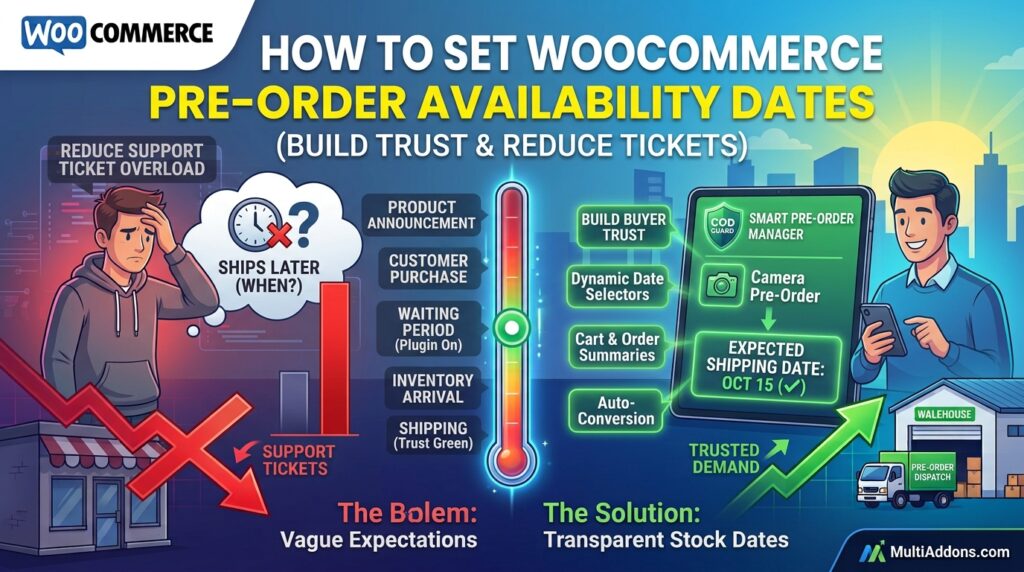
Accepting pre-orders without giving shoppers a clear estimated shipping timeline causes massive support headaches. However, many store owners leave delivery dates vague to avoid committing to a strict launch schedule.
For example, customers who buy pre-order items with no arrival date will repeatedly flood your support desk asking “Where is my order?”
Consequently, displaying a dynamic WooCommerce pre-order availability date creates complete transparency and prevents buyer remorse.
Therefore, setting clear stock arrival dates builds strong customer trust and dramatically reduces post-purchase support tickets.
In this guide, you will learn how availability dates improve customer satisfaction. Furthermore, discover how to display dynamic stock dates in WooCommerce using Smart Pre-Order Manager.
Why Displaying Expected Arrival Dates Increases Sales
Hiding delivery timelines creates buyer anxiety and causes customers to second-guess their purchase. In contrast, transparent date badges give shoppers confidence that their order is being actively managed.
In fact, displaying clear pre-order dates provides three major operational benefits:
- Reduce Customer Support Tickets: First, answer delivery timing questions upfront on product pages before buyers ask.
- Build Long-Term Brand Loyalty: Second, set realistic expectations to ensure customers feel informed throughout the waiting period.
- Drive Immediate Pre-Launch Urgency: Finally, inform shoppers exactly when stock drops so they lock in early orders before items sell out.
How Smart Pre-Order Manager Handles Stock Dates
Adding dynamic date badges manually using custom code requires constant database updates. Fortunately, Smart Pre-Order Manager for WooCommerce automates arrival date displays across your entire store.
Key Availability Date Features in Smart Pre-Order Manager:
- Dynamic Date Selectors: First, pick exact arrival dates or general timeframes (e.g., “Ships on Oct 15” or “Available Late Q4”).
- Automated Product Page Badges: Second, display clear availability badges right above or below the buy button.
- Cart & Order Summary Displays: Third, show the expected shipping date inside cart summaries, checkout pages, and email receipts.
- Auto-Conversion on Stock Arrival: In addition, automatically convert pre-order status to standard in-stock purchasing when the date arrives.
- Variable Product Date Support: Finally, assign unique availability dates to individual product variations (e.g., Size M arrives in September, Size L in October).
3 Simple Steps to Set Availability Dates Today
- Determine Supplier Timelines: First, consult with your manufacturer or distributor to establish realistic inventory delivery dates.
- Configure Smart Pre-Order Manager: Next, set your expected arrival dates and select your preferred display style inside plugin settings.
- Notify Registered Buyers: Finally, send automated emails to update customers instantly if shipping dates change due to logistics delays.
Build Maximum Buyer Trust Today
Stop leaving your pre-order customers in the dark about shipping schedules. Instead, create complete delivery transparency with Smart Pre-Order Manager today.
Additionally, you can make high-ticket pre-launch purchases even easier for your audience. For example, read our step-by-step guide on how to set up WooCommerce pre-order deposits to lower price friction and capture upfront partial payments.